A transfer student is anyone who has attended a college or university after graduating from high school and wishes to enroll in an undergraduate degree program at one of the Universities of Wisconsin. Transfer students are vital members of our UW universities. Our campuses are ready to help ease your transfer and support your success!
Through our Transfer Wisconsin resources, the Universities of Wisconsin help students learn how their college credits will transfer to a UW university degree.
Get Started
Use our credit transfer tool, known as Transferology.


UW-Stout students who transferred from two-year colleges are excited about the career prospects of a four-year degree. / UW-Stout
Current UW university Student
Are you currently attending a UW University and want to transfer to another UW university or a Wisconsin Technical College?

Wisconsin Technical College Student
Are you currently a Wisconsin Technical College student and want to transfer to a UW campus or another Wisconsin Technical College?

WI Private or Out-of-State College Student
Are you currently attending a Wisconsin private or out-of-state college and would like to transfer to a UW campus or Wisconsin Technical College?

Learn More About the Transfer Admissions Process
Are you ready to start working on your transfer application?
Check out our detailed transfer checklist.
Guaranteed Transfer for Current UW Students
Have you started your journey at a UW university and want to complete your degree at a different UW university?
Learn more about Universities of Wisconsin Guaranteed Transfer opportunities.
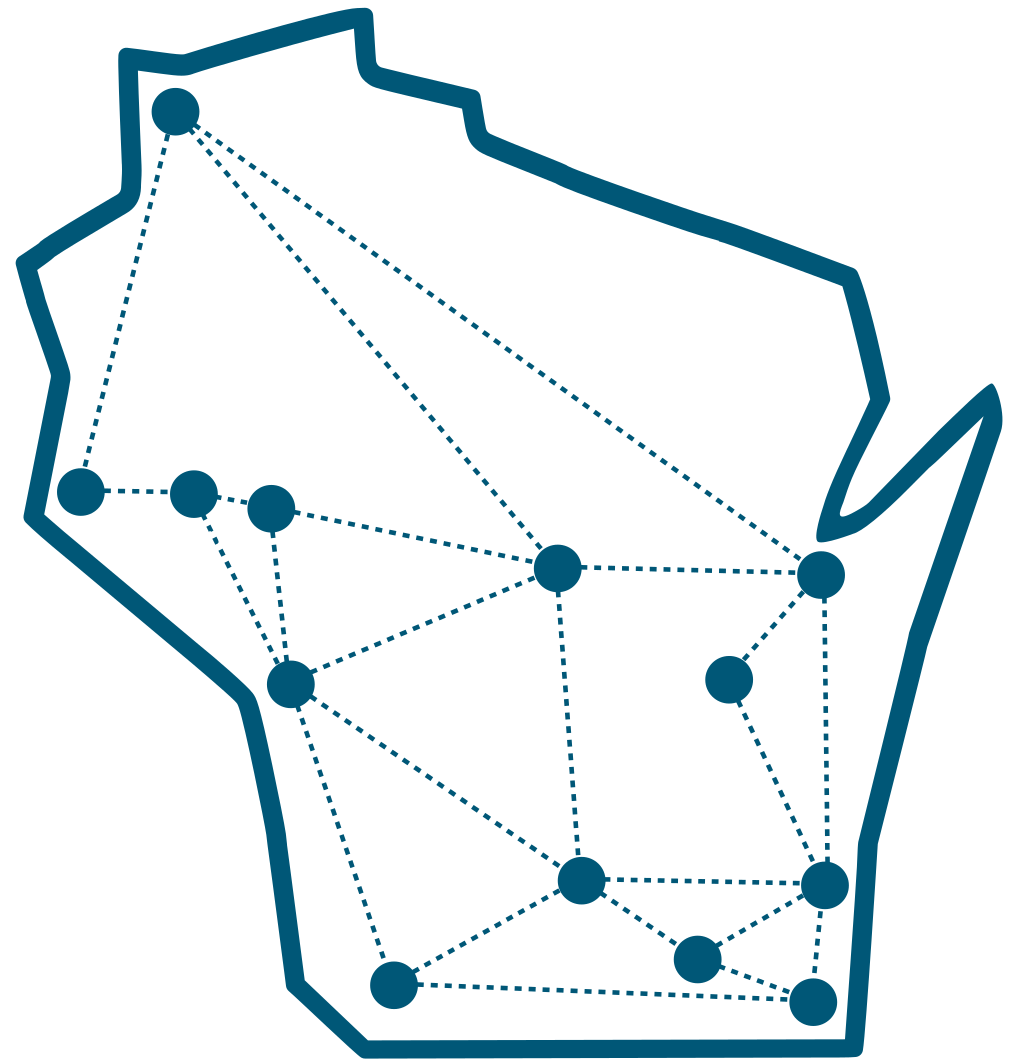
Explore Transfer Opportunities at our UW Universities
-
Select a University
Use the dropdown box to begin.
Use the map or dropdown box to begin.
-
UW-Eau Claire
-
UW-Green Bay
-
UW-La Crosse
-
UW-Madison
-
UW-Milwaukee
-
UW-Oshkosh
-
UW-Parkside
-
UW-Platteville
-
UW-River Falls
-
UW-Stevens Point
-
UW-Stout
-
UW-Superior
-
UW-Whitewater
The Universities of Wisconsin lead a statewide initiative to improve credit transfer for Wisconsin students. It includes the Transferology credit transfer tool, Transfer Guides, Articulation Agreements, Universal Credit Transfer Agreement (UCTA), and Transfer Plans.
Transfer Wisconsin is maintained by Universities of Wisconsin Administration. It is the result of a collaborative effort by the Universities of Wisconsin and Wisconsin Technical College System to help students transfer between all public, post-secondary institutions in the state of Wisconsin.